Chapter 61: Process Groups, Sessions, and Job Control
Chapter Objectives
Upon completing this chapter, you will be able to:
- Understand the hierarchical relationship between processes, process groups, and sessions in a Linux environment.
- Implement C programs that create and manage process groups and sessions using system calls like
setpgid()andsetsid(). - Configure and manage foreground and background jobs from a shell and understand the signaling mechanisms involved.
- Debug common issues related to process groups, such as orphaned processes and improper terminal handling.
- Analyze the process architecture of a running embedded system using command-line tools to identify sessions and process groups.
- Apply these concepts to create robust, well-behaved daemon processes suitable for embedded applications.
Introduction
In any modern operating system, managing individual processes is only the beginning of the story. A typical user interaction or system service involves not just one process, but a collection of related processes working in concert. Consider a simple command pipeline in a shell, like grep "error" /var/log/syslog | sort | uniq. This single command line spawns three distinct processes that must be managed as a single unit. If the user presses Ctrl+C, they expect the entire pipeline to terminate, not just one of the processes. This coordinated control is where the concepts of process groups and sessions become indispensable.
For an embedded Linux developer, understanding this layer of process management is crucial for building robust and reliable systems. Embedded devices often run background services, or daemons, which must detach completely from any user terminal to ensure they are not accidentally terminated when a user logs out. Creating a proper daemon involves a deep understanding of sessions. Furthermore, when designing interactive applications or debugging tools for an embedded target, managing job control—the ability to move processes between the foreground and background—is a fundamental skill. This chapter delves into the Linux process model beyond the individual process, exploring the structures that group them together. We will examine how the kernel uses process groups and sessions to deliver signals, manage terminal access, and implement the job control features that are fundamental to the Linux command-line experience. Using the Raspberry Pi 5, you will learn not just the theory but also the practical application of these powerful concepts.
Technical Background
To truly master system-level programming in Linux, one must look beyond the individual process and understand how the kernel organizes them into larger, manageable collections. This organization is hierarchical, starting with a single process and expanding to encompass groups and sessions. These structures are not merely for organizational convenience; they are fundamental to how Linux handles everything from signal delivery to terminal I/O and the orderly startup and shutdown of system services.
The Need for Process Organization: Beyond the PID
Every process in a Linux system is uniquely identified by its Process ID (PID). While essential, the PID alone is insufficient for managing related tasks collectively. As introduced earlier, a shell pipeline is a classic example. Each command in the pipeline (grep, sort, uniq) is a separate process with its own PID. If you wanted to stop the entire pipeline, sending a SIGTERM signal to each individual PID would be cumbersome and prone to race conditions—what if a new process was spawned in the pipeline just as you were sending the signals?
The kernel needed a more robust mechanism. The solution was to introduce a new layer of abstraction: the process group. A process group is simply a collection of one or more processes, identified by a Process Group ID (PGID). This allows the kernel to treat the entire pipeline as a single entity for certain operations, most notably signal delivery. When a signal is sent to a process group, it is delivered to every process within that group. This is precisely how Ctrl+C works in your shell; the SIGINT signal is sent not to the single foreground process, but to the entire foreground process group.
The PGID is always the PID of the first process in the group, known as the process group leader. When a new process is created via fork(), it inherits the same PGID as its parent by default. This is how a pipeline stays together. The shell, before launching the processes, creates a new process group and makes the first process in the pipeline the leader. Subsequent processes in the pipeline inherit this PGID, binding them into a single, controllable job.
Understanding Process Groups in Detail
A process can join an existing process group or create a new one. The primary system call for this is setpgid(pid_t pid, pid_t pgid). This call sets the PGID of the process specified by pid to pgid. There are some important rules governing its use:
- A process can only set the PGID of itself or one of its children.
- Crucially, a process cannot change the PGID of a child after that child has executed a new program via one of the
exec()family of functions. This is a security and stability measure to prevent a parent from maliciously moving a running program into a different process group.
sequenceDiagram
    actor Parent
    participant Child
    participant Kernel

    Parent->>Kernel: fork()
    Kernel-->>Parent: return child_pid
    Kernel->>Child: Create Process
    Note over Child,Kernel: Child inherits PGID from Parent

    Child->>Child: getpgrp() // is Parent's PGID

    Child->>Kernel: setpgid(0, 0)
    Note right of Kernel: Kernel validates the request.<br/>(Child is not an exec'd process)
    Kernel-->>Child: return 0 (Success)
    Note over Child,Kernel: Kernel sets Child's PGID = Child's PID.

    Child->>Child: getpgrp() // is now self's PID
    Note left of Child: I am a Process Group Leader!
If pid and pgid are the same, the process with that PID becomes a new process group leader. A common pattern is for a process to fork() and then, in the child, call setpgid(0, 0). The 0 for both arguments is a shorthand for “the calling process’s PID.” This action makes the child process a new process group leader.
The shell uses this mechanism to manage jobs. Each command or pipeline you run is a job, and each job corresponds to one process group. The shell keeps track of these jobs, allowing you to move them between the foreground and background.
graph TD
    subgraph ShellEnv ["Shell Environment"]
        Shell["Shell Process <br>PID: 1000, PGID: 1000, SID: 1000"]
    end

    subgraph Job1 ["Job 1: Pipeline (Foreground Process Group)"]
        style Job1 fill:#f0f9ff,stroke:#e0f2fe

        Grep["grep 'error'<br>PID: 1001<br>PGID: 1001"]
        Sort["sort<br>PID: 1002<br>PGID: 1001"]
        Uniq["uniq<br>PID: 1003<br>PGID: 1001"]

        Grep -- "pipe" --> Sort -- "pipe" --> Uniq
    end

    Shell -- "forks & execs" --> Grep
    Shell -.-> Sort
    Shell -.-> Uniq

    subgraph UserInput ["User Input"]
        Keyboard["<i style='font-size: 24px;'>⌨️</i><br><b>Ctrl+C</b>"]
    end

    Keyboard -- "sends SIGINT" --> Job1

    classDef default fill:#ffffff,stroke:#4b5563,color:#1f2937
    classDef shell fill:#1e3a8a,stroke:#1e3a8a,stroke-width:2px,color:#ffffff
    classDef process fill:#0d9488,stroke:#0d9488,stroke-width:1px,color:#ffffff
    classDef signal fill:#ef4444,stroke:#ef4444,stroke-width:1px,color:#ffffff

    class Shell shell
    class Grep,Sort,Uniq process
    class Keyboard signal
Sessions: The Login Environment
While process groups are excellent for managing jobs, a higher level of organization is needed to represent a user’s entire login session. A session is a collection of one or more process groups. It is designed to correspond to a user’s login to the system, typically via a terminal. All processes within a session share a single controlling terminal.
The process that creates a new session is called the session leader. The session ID (SID) is, by convention, the same as the PID of the session leader. A key rule is that a process group leader cannot create a new session. This prevents a process from inadvertently isolating its parent or siblings from the current session. Therefore, to create a new session, a process must first fork(), and the child process, which is not a process group leader, then calls the setsid() system call.
graph TD
    A["Child Process calls setsid()"] ==> B{"Kernel Executes setsid()"};

    subgraph "Atomic Operation"
        B --> C["Process becomes<br><b>New Session Leader</b><br><i>(SID = PID)</i>"];
        B --> D["Process becomes<br><b>New Process Group Leader</b><br><i>(PGID = PID)</i>"];
        B --> E["Process is <b>Detached</b><br>from Controlling Terminal<br><i>(if any)</i>"];
    end

    C & D & E --> F[Process is now a<br><b>Daemon Candidate</b>];

    classDef start fill:#1e3a8a,stroke:#1e3a8a,stroke-width:2px,color:#ffffff;
    classDef process fill:#0d9488,stroke:#0d9488,stroke-width:1px,color:#ffffff;
    classDef decision fill:#8b5cf6,stroke:#8b5cf6,stroke-width:1px,color:#ffffff;
    classDef endo fill:#10b981,stroke:#10b981,stroke-width:2px,color:#ffffff;

    class A start;
    class B decision;
    class C,D,E process;
    class F endo;
The setsid() call accomplishes three things in one atomic operation:
- The calling process becomes the leader of a new session.
- The calling process becomes the leader of a new process group.
- The calling process is detached from its controlling terminal (if it had one).
This detachment from the controlling terminal is the most critical aspect for embedded systems development. A process that is part of a session with a controlling terminal is subject to being terminated if the connection to that terminal is lost (e.g., a user logs out of an SSH session). The kernel sends a hang-up signal (SIGHUP) to the session leader, which is then propagated to all processes in the foreground process group. For a background service, or daemon, this is undesirable. A daemon must continue running regardless of user logins or logouts. By calling setsid(), a daemon creates its own session without a controlling terminal, effectively insulating itself from user login activities. This is the cornerstone of creating a robust background service.
graph TD
    subgraph LoginSession ["Login Session (SID: 2000)"]
        direction LR
        style LoginSession fill:#f0f9ff,stroke:#e0f2fe

        Shell["<b>Session Leader: bash</b><br>PID: 2000<br>PGID: 2000<br>SID: 2000"]

        subgraph ForegroundPG ["Foreground Process Group (PGID: 2010)"]
            style ForegroundPG fill:#dcfce7,stroke:#10b981
            Vim["vim document.txt<br>PID: 2010"]
        end

        subgraph BackgroundPG ["Background Process Group (PGID: 2025)"]
            style BackgroundPG fill:#ffedd5,stroke:#f59e0b
            Find["find / -name '*.log'<br>PID: 2025"]
            Grep["grep 'FATAL'<br>PID: 2026"]
            Find -- "pipe" --> Grep
        end

        Shell -- "manages" --> ForegroundPG
        Shell -- "manages" --> BackgroundPG
    end

    Terminal["<i style='font-size: 24px;'>💻</i><br><b>Controlling Terminal</b><br>/dev/pts/0"]

    Terminal <--> ForegroundPG
    Terminal -. "Input/Output Blocked" .-> BackgroundPG

    classDef default fill:#ffffff,stroke:#4b5563,color:#1f2937
    classDef sessionLeader fill:#1e3a8a,stroke:#1e3a8a,stroke-width:2px,color:#ffffff
    classDef process fill:#0d9488,stroke:#0d9488,stroke-width:1px,color:#ffffff
    classDef terminal fill:#8b5cf6,stroke:#8b5cf6,stroke-width:1px,color:#ffffff

    class Shell sessionLeader
    class Vim,Find,Grep process
    class Terminal terminal
The Controlling Terminal
The controlling terminal acts as the primary interface for a session. It is the device that handles keyboard input and standard output/error for the foreground process group. When you type Ctrl+C, it is the terminal driver in the kernel that recognizes this special character and generates the SIGINT signal, sending it to the foreground process group associated with that terminal.
Only one process group at a time can be the foreground process group for a given controlling terminal. This is the group that has direct access to the terminal for input and output. Any other process groups in the session are considered background process groups. If a background process attempts to read from (stdin) or write to (stdout/stderr) the controlling terminal, it will be sent a signal by the terminal driver (SIGTTIN for reading, SIGTTOU for writing). By default, these signals stop the process. This is a safety mechanism that prevents background jobs from garbling the terminal output or fighting with the foreground job for keyboard input.
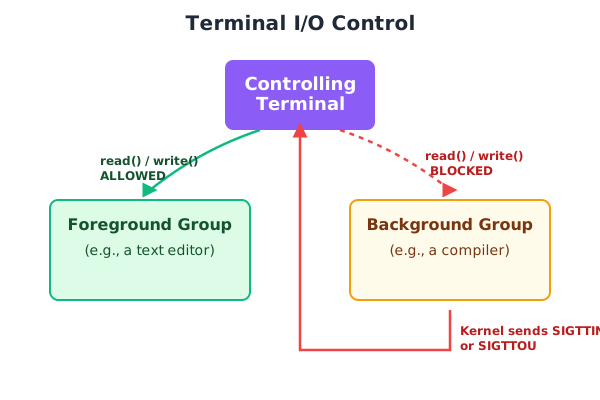
The shell manages this behavior. When you use the bg command to move a stopped job to the background, the shell allows it to continue running but keeps it in a background process group. When you use the fg command, the shell moves the job’s process group into the foreground, giving it back control of the terminal and sending it a SIGCONT signal to resume execution if it was stopped.
Job Control: Managing Foreground and Background Processes
Job control is the feature of the shell that allows a user to manage multiple processes or pipelines simultaneously. It relies entirely on the concepts of process groups, sessions, and the controlling terminal.
The key components of job control are:
- Foreground and Background: A job can be running in the foreground, where it has control of the terminal, or in the background.
- Job Identification: The shell assigns a small integer job number (e.g.,
[1],[2]) to each job, making it easy to reference them with commands likefg %1. - Stopping and Resuming: A user can stop the foreground job by pressing
Ctrl+Z, which sends theSIGTSTPsignal. The job can then be resumed in the foreground withfgor in the background withbg. Both commands work by sending theSIGCONTsignal to the process group.
This entire mechanism is a carefully orchestrated dance between the shell, the kernel’s process management subsystem, and the terminal driver. The shell uses system calls like setpgid() to place jobs in their own process groups. It uses tcsetpgrp() to tell the terminal driver which process group is currently in the foreground. The terminal driver, in turn, enforces the rules, sending signals like SIGINT, SIGTSTP, SIGTTIN, and SIGTTOU to the appropriate process groups based on user input and process behavior.
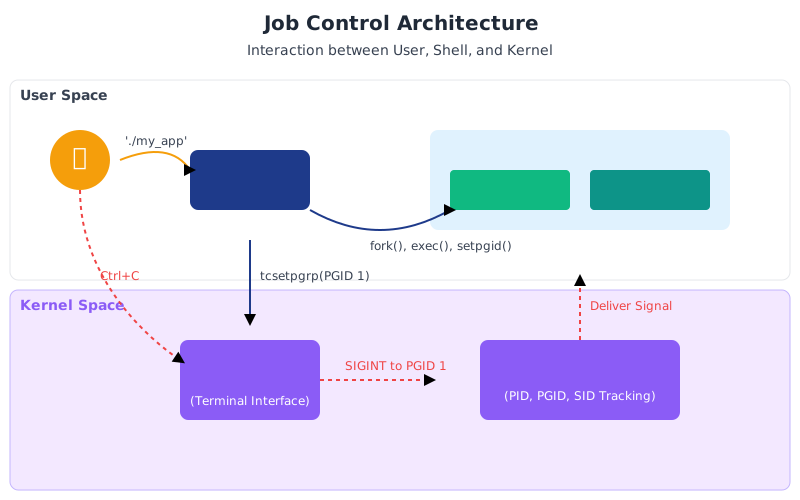
For an embedded developer, while you may not be implementing a full-blown shell, understanding this flow is vital. When you create an interactive diagnostic tool that runs on the device’s console, you must be aware of how it will interact with the terminal. If your application spawns helper processes, you must decide if they should be in the same process group or a different one, and how they should handle signals. If you are creating a daemon, you must ensure it correctly detaches from its controlling terminal to avoid being killed unexpectedly. These are not obscure corner cases; they are fundamental aspects of robust system design in the Linux environment.
Practical Examples
Theory provides the foundation, but practical application solidifies understanding. In this section, we will use the Raspberry Pi 5 to explore process groups and sessions with hands-on examples. We will write C code, use standard command-line utilities, and interact with the hardware to see these concepts in action.
Prerequisites:
- A Raspberry Pi 5 with Raspberry Pi OS (or another suitable Linux distribution) installed.
- Access to the Raspberry Pi via SSH or a direct keyboard/monitor setup.
- The
build-essentialpackage installed (sudo apt-get install build-essential) to provide the GCC compiler and related tools.
Example 1: Identifying Process Groups and Sessions
First, let’s use standard tools to visualize the process hierarchy on a running system.
Procedure:
- Open two separate terminal windows (or SSH sessions) to your Raspberry Pi 5. This will create two distinct login sessions.
- In the first terminal, run a command that takes a while to complete, such as
sleep 600. - In the second terminal, we will use the
pscommand with specific options to view the process hierarchy. Theaxjfoptions are particularly useful:ashows processes for all users,xshows processes not attached to a terminal,jprovides job control format, andfshows the process tree.
# In Terminal 2
ps axjf
Expected Output and Analysis:
You will see a detailed tree-like output. Look for your sleep 600 command.
 PPID   PID  PGID   SID TTY      TPGID STAT   UID   TIME COMMAND
    1  1234  1234  1234 ?           -1 Ss    1000   0:00 /lib/systemd/systemd --user
 1234  1236  1236  1236 ?           -1 S     1000   0:00 (sd-pam)
    0  1500  1500  1500 ?           -1 Ss       0   0:05 /usr/sbin/sshd -D
 1500  2100  2100  2100 ?           -1 Ss       0   0:00  \_ sshd: pi [priv]
 2100  2102  2100  2100 ?           -1 S     1000   0:00      \_ sshd: pi@pts/0
 2102  2103  2103  2103 pts/0      2103 S+    1000   0:00          \_ -bash
 2103  2255  2255  2103 pts/0      2255 T+    1000   0:00              \_ sleep 600
 2102  2300  2300  2103 pts/0      2300 R+    1000   0:00              \_ ps axjf
Let’s break down the line for sleep 600:
PPID: The Parent Process ID. In this case,2103, which is the PID of the-bashshell.PID: The Process ID ofsleep,2255.PGID: The Process Group ID. It’s2255, meaningsleepis the leader of its own process group. The shell created a new process group for this job.SID: The Session ID. It’s2103, the same as the shell’s PID. This shows that both the shell and thesleepcommand are in the same session, which was created by the shell (or its parentsshdprocess).TTY: The controlling terminal,pts/0.TPGID: The Terminal’s Foreground Process Group ID. For thepts/0terminal, this is2255, confirming thatsleepis the foreground job.
This simple command provides a powerful snapshot of the process hierarchy, clearly showing the relationships between PIDs, PGIDs, and SIDs.
Example 2: Creating a Process Group in C
Now, let’s write a C program that demonstrates creating a new process group. This program will fork a child, and the child will become the leader of a new process group.
File: group_creator.c
#include <stdio.h>
#include <stdlib.h>
#include <unistd.h>
#include <sys/types.h>
#include <sys/wait.h>

int main() {
    pid_t pid;
    int status;

    pid = fork();

    if (pid < 0) {
        // Fork failed
        perror("fork");
        exit(EXIT_FAILURE);
    } else if (pid == 0) {
        // --- Child Process ---
        printf("Child  (PID: %d): My parent's PID is %d\n", getpid(), getppid());
        printf("Child  (PID: %d): My initial PGID is %d\n", getpid(), getpgrp());

        // Create a new process group. The child becomes the leader.
        // Using setpgid(0, 0) is equivalent to setpgid(getpid(), getpid()).
        if (setpgid(0, 0) < 0) {
            perror("setpgid");
            exit(EXIT_FAILURE);
        }

        printf("Child  (PID: %d): My new PGID is now %d (I am a group leader)\n", getpid(), getpgrp());

        // Do some work
        printf("Child  (PID: %d): Pausing for 10 seconds...\n", getpid());
        sleep(10);
        printf("Child  (PID: %d): Exiting.\n", getpid());
        exit(EXIT_SUCCESS);
    } else {
        // --- Parent Process ---
        printf("Parent (PID: %d): I forked a child with PID %d\n", getpid(), pid);

        // Wait for the child to finish to avoid it becoming a zombie.
        // The parent could do other things here.
        printf("Parent (PID: %d): Waiting for child to exit.\n", getpid());
        waitpid(pid, &status, 0);
        printf("Parent (PID: %d): Child has exited. Exiting myself.\n", getpid());
    }

    return 0;
}
Build and Run Steps:
- Save the code above as
group_creator.con your Raspberry Pi. - Compile the program using GCC:
gcc -o group_creator group_creator.c - Run the executable:
./group_creator
Expected Output and Analysis:
Parent (PID: 3105): I forked a child with PID 3106
Parent (PID: 3105): Waiting for child to exit.
Child  (PID: 3106): My parent's PID is 3105
Child  (PID: 3106): My initial PGID is 3105
Child  (PID: 3106): My new PGID is now 3106 (I am a group leader)
Child  (PID: 3106): Pausing for 10 seconds...
# ... 10 seconds pass ...
Child  (PID: 3106): Exiting.
Parent (PID: 3105): Child has exited. Exiting myself.
The key insight here is the change in the child’s PGID. Initially, the child inherits the PGID of its parent (3105). After the setpgid(0, 0) call, its PGID changes to match its own PID (3106), signifying that it has successfully created and become the leader of a new process group.
Example 3: Creating a Daemon Process
This is the canonical use case for sessions in embedded systems. We will create a simple daemon that detaches from the terminal, creates its own session, and runs in the background. A real-world daemon would also change its working directory, close standard file descriptors, and handle signals, but this example focuses on the session creation aspect.
Warning: A properly written daemon is more complex than this example. It should also handle
SIGHUP,SIGTERM, change the working directory to/, and redirectstdin,stdout, andstderrto/dev/nullor a log file. This example is simplified for educational purposes.
File: simple_daemon.c
#include <stdio.h>
#include <stdlib.h>
#include <unistd.h>
#include <sys/types.h>
#include <sys/stat.h>
#include <string.h>
#include <fcntl.h>
#include <time.h>

void daemonize() {
    pid_t pid;

    // 1. Fork off the parent process
    pid = fork();
    if (pid < 0) exit(EXIT_FAILURE);
    if (pid > 0) exit(EXIT_SUCCESS); // Parent exits

    // --- Child Process Continues (but is not session leader) ---

    // 2. Create a new session
    // The child becomes session leader, process group leader, and has no controlling terminal.
    if (setsid() < 0) {
        exit(EXIT_FAILURE);
    }

    // At this point, the process is detached from the terminal.
    // For a robust daemon, we would also:
    // - Fork again to prevent the process from acquiring a new controlling terminal.
    // - Change the working directory to the root: chdir("/");
    // - Set the umask: umask(0);
    // - Close all open file descriptors.

    // Let's just prove we are running by writing to a log file.
    FILE *log_file = fopen("/tmp/simple_daemon.log", "w+");
    if (!log_file) {
        // Cannot open log file, not much we can do
        exit(EXIT_FAILURE);
    }

    while (1) {
        time_t now = time(NULL);
        fprintf(log_file, "Daemon alive at: %s", ctime(&now));
        fflush(log_file); // Ensure data is written to disk
        sleep(10);
    }
}

int main() {
    printf("Starting daemonization process...\n");
    daemonize();
    // This part of main is never reached because daemonize() either exits or loops forever.
    return 0;
}
Build, Run, and Verify:
- Save the code as
simple_daemon.c. - Compile it:
gcc -o simple_daemon simple_daemon.c - Run it from your terminal:
./simple_daemon - You will see the “Starting daemonization process…” message, and then you will immediately get your shell prompt back. The program has forked, the parent has exited, and the child is now running in the background as a daemon.
- Verify it’s running. Use
psto find it. You will notice it has noTTYassociated with it.ps aux | grep simple_daemonThe output should show a process running, but theTTYcolumn will have a?. - Check the log file to see its output:
tail -f /tmp/simple_daemon.logYou will see log entries appearing every 10 seconds. - To stop the daemon, find its PID with
psand use thekillcommand:kill <PID_of_simple_daemon>
This example powerfully demonstrates how fork() and setsid() work together to create a process that is independent of the login session that started it, a fundamental requirement for any service on an embedded Linux device.
Common Mistakes & Troubleshooting
When working with process groups and sessions, developers often encounter a few common pitfalls. Understanding these ahead of time can save hours of debugging.
Exercises
These exercises are designed to be performed on your Raspberry Pi 5 to reinforce the concepts from this chapter.
- The Pipeline Inspector:
- Objective: Observe how a shell places a pipeline of commands into a single process group.
- Steps:
- In one terminal, run the following command:
cat /dev/urandom | hexdump -C | grep "00 00" - This pipeline will run continuously. Quickly switch to a second terminal.
- Use
ps axjfto find the processes associated with the pipeline. - Identify the PID, PPID, PGID, and SID for each of the three commands (
cat,hexdump,grep).
- In one terminal, run the following command:
- Verification: Confirm that all three processes share the same PGID and SID. Note which process is the process group leader (its PID will match the PGID). In the first terminal, press
Ctrl+Cand verify that all three processes terminate simultaneously.
- Job Control Practice:
- Objective: Gain familiarity with shell job control commands.
- Steps:
- In a terminal, run
sleep 1000. - Press
Ctrl+Zto stop the job. Observe the message from the shell. - Run
sleep 2000 &to start a second job directly in the background. - Use the
jobscommand to view the status of all jobs. - Bring the first job (
sleep 1000) to the foreground usingfg %1. - Send it to the background using
Ctrl+Zagain, then thebgcommand.
- In a terminal, run
- Verification: Use the
jobscommand after each step to see how the status of the jobs (Running, Stopped) and their position (foreground/background) changes.
- Orphaned Process Demonstration:
- Objective: Write a program to create an orphaned process and observe its behavior.
- Steps:
- Write a C program where a parent
fork()s a child. - The child should call
setpgid(0, 0)to create its own process group. - The child should then enter an infinite loop (
while(1) { sleep(1); }). - The parent should print the child’s PID and then exit immediately without calling
wait(). - Run the program. The parent will exit, leaving the child running.
- Use
ps -p <child_pid> -o pid,ppid,pgrp,stat.
- Write a C program where a parent
- Verification: Check the PPID of the child process after the parent has exited. You will see that it has been “re-parented” to
init(PID 1) or a systemd user process. The process is now part of an orphaned process group. This demonstrates the kernel’s mechanism for handling such processes.
- Daemon with Signal Handling:
- Objective: Enhance the
simple_daemon.cexample to handle signals gracefully. - Steps:
- Modify
simple_daemon.c. - Add a signal handler function for
SIGTERM. - Inside the handler, write a “Caught SIGTERM, shutting down…” message to the log file and then call
exit(EXIT_SUCCESS). - In the
daemonizefunction, aftersetsid(), register this handler usingsignal(SIGTERM, your_handler_function);. - Compile and run the new daemon.
- Modify
- Verification: Let the daemon run for a bit. Find its PID. Use
kill <PID>(which sendsSIGTERMby default). Check the log file (/tmp/simple_daemon.log). You should see the “shutting down” message as the final entry, proving your signal handler worked correctly.
- Objective: Enhance the
Summary
- Process Groups are collections of processes, identified by a PGID, used primarily for job control and signal delivery. A signal sent to a group is delivered to all its members.
- Sessions are collections of process groups, identified by an SID, that model a user’s login. A session is typically associated with a single controlling terminal.
- Job Control is a shell feature that allows users to manage multiple process groups (jobs), moving them between the foreground and background, and stopping/resuming them with signals like
SIGTSTPandSIGCONT. - The Controlling Terminal directs keyboard input to the foreground process group and is the source of terminal-generated signals like
SIGINT(Ctrl+C). - The
setpgid()system call is used to set a process’s group ID, while thesetsid()call creates a new session and detaches the process from its controlling terminal. - Daemons are background processes that must be independent of any login session. They achieve this by forking and calling
setsid()to create a new session without a controlling terminal, thus ensuring they survive user logouts. - Understanding these concepts is critical for writing robust, multi-process applications and essential system services in an embedded Linux environment.
Further Reading
- Advanced Programming in the UNIX Environment, 3rd Edition by W. Richard Stevens and Stephen A. Rago. Chapters 9 (“Process Relationships”) is the definitive reference on this topic.
- The Linux Programming Interface by Michael Kerrisk. Chapters 34 (“Process Groups, Sessions, and Job Control”) and 37 (“Daemons”) provide an exhaustive and clear explanation.
- Linux Kernel Documentation on Job Control: While dense, the source is the ultimate authority. The
credentials.txtandtty.txtfiles in the kernel documentation source tree offer insights. (Accessible viakernel.org). credentials(7)man page: Runman 7 credentialson your Linux system. This manual page provides a detailed overview of process credentials, including PIDs, PGIDs, and SIDs.setsid(2)man page: Runman 2 setsid. It provides the specific technical details for the system call that is central to daemon creation.- Raspberry Pi Foundation Documentation: While not specific to process management, the official documentation provides the context for the hardware and base operating system used in the examples. https://www.raspberrypi.com/documentation/
- POSIX.1-2017 Standard: The official standard from The Open Group defines the expected behavior of process groups, sessions, and job control on compliant systems. https://pubs.opengroup.org/onlinepubs/9699919799.2018edition/