Chapter 95: Bootloaders: Role, Function, and Stages
Chapter Objectives
Upon completing this chapter, you will be able to:
- Understand the critical role of a bootloader in the embedded Linux boot sequence.
- Differentiate between the various stages of a modern boot process, from power-on to kernel execution.
- Configure, cross-compile, and deploy the U-Boot bootloader for the Raspberry Pi 5 platform.
- Implement the process of loading a Linux kernel image and its corresponding Device Tree Blob from U-Boot.
- Modify bootloader environment variables to control kernel boot arguments and automate the boot process.
- Debug common bootloader issues using a serial console and diagnostic commands.
Introduction
In the world of embedded systems, the journey from a silent, powered-off state to a fully functional Linux environment is a rapid but complex sequence of events orchestrated by a critical piece of software: the bootloader. It is the unsung hero of every embedded Linux device, from industrial controllers and automotive infotainment systems to the smart thermostat on your wall. While the Linux kernel is the powerful heart of the system, it is merely inert data stored on a flash chip or SD card without the bootloader to awaken it. The bootloader is the bridge between hardware and the operating system, the digital midwife responsible for preparing the system and bringing the kernel to life.
This chapter delves into the fundamental concepts behind the boot process. We will move beyond the theoretical idea of “booting” and explore the tangible, step-by-step process that enables a modern System-on-Chip (SoC) like the one in the Raspberry Pi 5 to run Linux. Having previously learned how to establish a cross-compilation toolchain and organize a build environment, we will now put those tools to practical use. We will explore the staged nature of modern bootloaders, understand why this architecture is necessary, and demystify the key tasks of hardware initialization, memory management, and parameter passing. By the end of this chapter, you will have not only a deep theoretical understanding but also the hands-on experience of compiling, deploying, and configuring the industry-standard Das U-Boot bootloader, observing firsthand its pivotal role in launching the Linux kernel.
Technical Background
The Genesis of the Boot Process: From Reset Vector to OS
Every digital system’s life begins at the moment power is applied. When an SoC like the Raspberry Pi 5’s BCM2712 is powered on, its processor cores are held in a reset state until power is stable. Once released from reset, the processor is hardwired to begin executing code from a specific, non-volatile memory address known as the reset vector. This initial code is not the Linux kernel, nor is it even the full-featured bootloader we will come to know. It is a small, immutable piece of software burned into the silicon of the SoC itself, often called the Boot ROM or Primary Program Loader (PPL).
The Boot ROM’s purpose is singular and critical: to find and load the next stage of the boot process from a supported boot medium. Its logic is simple, robust, and unchangeable. It will typically probe various storage devices in a predetermined order—for instance, an onboard EEPROM, an SD card, or a USB device—looking for a valid signature or boot image. On the Raspberry Pi 5, the Boot ROM’s primary task is to locate and execute the code stored in a dedicated boot EEPROM on the board. This EEPROM contains a more sophisticated, user-upgradable piece of software that can be considered the second-stage bootloader. This firmware is responsible for more complex initializations, such as configuring the LPDDR4x RAM controller and setting up the system clocks. Without successful memory initialization, there would be no place to load the much larger Linux kernel. Once this vital task is complete, the EEPROM code takes over the search for the next stage, which, in our case, will be the U-Boot bootloader located on a microSD card. This multi-stage process is a fundamental design pattern in embedded systems, allowing a small, reliable piece of silicon-resident code to bootstrap a larger, more complex, and updatable bootloader.
%%{ init: { 'theme': 'base', 'themeVariables': { 'fontFamily': 'Open Sans' } } }%%
graph TD
subgraph Hardware
A[<b>Power-On Reset</b>


BCM2712 SoC]
end

subgraph "On-Chip Boot ROM (PPL)"
    B{Find Boot Medium}
end

subgraph On-Board EEPROM
    C[<b>2nd Stage Firmware</b><br>Initializes LPDDR4x RAM<br>Initializes System Clocks]
    D{Find Next Stage on<br>SD Card / USB}
end

subgraph "SD Card (FAT32 Partition)"
    E[<b>U-Boot Bootloader</b><br>u-boot.bin]
end

subgraph System RAM
    F["U-Boot Environment<br><b>(Interactive Prompt)</b>"]
end

A -- "Power Stable" --> B;
B -- "Locates & Executes" --> C;
C -- "RAM Initialized" --> D;
D -- "Loads u-boot.bin into RAM" --> E;
E -- "Executes" --> F;

style A fill:#1e3a8a,stroke:#1e3a8a,stroke-width:2px,color:#ffffff
style B fill:#f59e0b,stroke:#f59e0b,stroke-width:1px,color:#ffffff
style C fill:#0d9488,stroke:#0d9488,stroke-width:1px,color:#ffffff
style D fill:#f59e0b,stroke:#f59e0b,stroke-width:1px,color:#ffffff
style E fill:#8b5cf6,stroke:#8b5cf6,stroke-width:1px,color:#ffffff
style F fill:#10b981,stroke:#10b981,stroke-width:2px,color:#ffffff
The Staged Bootloader Architecture
The reason for this staged approach is rooted in the inherent constraints of embedded hardware. The internal memory (SRAM) available to the Boot ROM is extremely limited, often just a few tens or hundreds of kilobytes. This is insufficient to house a full-featured bootloader with drivers for multiple filesystems, networking stacks, and a user-friendly command-line interface. Therefore, the boot process is a chain of trust and capability, where each stage loads and executes a subsequent, more powerful one.
The First-Stage Bootloader (FSBL), which on the Pi 5 is the combination of the on-chip Boot ROM and the EEPROM firmware, performs the bare minimum hardware setup required to load the main bootloader. Its responsibilities are spartan: initialize critical clocks, configure the memory controller, and load the next stage into the now-available system RAM.
The Second-Stage Bootloader (SSBL) is what developers typically refer to as “the bootloader.” In the embedded Linux ecosystem, this is most often Das U-Boot (“The Universal Boot Loader”). U-Boot is a highly versatile and powerful open-source project that serves as a common boot platform for countless embedded devices. Once loaded into RAM by the first stage, U-Boot takes full control. It continues the hardware initialization process, setting up peripherals that might be needed to boot the OS, such as the eMMC/SD card controller, USB ports, and Ethernet controllers. Its feature-rich environment provides the flexibility needed for both development and production.
Das U-Boot: The Embedded Workhorse
U-Boot is more than just a simple loader; it’s a miniature operating environment in its own right. Its design philosophy is to provide a standardized, powerful, and scriptable interface for booting operating systems on embedded platforms. Its core responsibilities can be broken down into several key areas.
First, it completes the hardware initialization. While the FSBL handled the absolute essentials, U-Boot configures the broader set of peripherals required to locate and load the kernel. This includes drivers for various storage technologies (NAND, eMMC, SATA, NOR) and filesystems (FAT, ext4, UBIFS). It also commonly includes a networking stack, allowing it to load a kernel image from a network server via TFTP, a practice indispensable during development.
Second, it is responsible for loading the payload into RAM. The primary payload for our purposes is the Linux kernel image. U-Boot reads the kernel file from the configured storage device and copies it to a specific address in system memory. But the kernel alone is not enough.
%%{ init: { 'theme': 'base', 'themeVariables': { 'fontFamily': 'Open Sans' } } }%%
flowchart TD
subgraph "U-Boot Environment (in RAM)"
A(<b>Start Boot Process</b>


From bootcmd or manual input)
B["fatload mmc 0:1 ${kernel_addr_r} Image


<i>(Loads Kernel to RAM)</i>"]
C["fatload mmc 0:1 ${fdt_addr_r} bcm2712-rpi-5-b.dtb


<i>(Loads DTB to RAM)</i>"]
D["setenv bootargs 'console=... root=...'


<i>(Prepare Kernel Command Line)</i>"]
E{"booti ${kernel_addr_r} - ${fdt_addr_r}


<i>(Execute Kernel)</i>"}
end

subgraph "Linux Kernel (in RAM)"
    F[<b>Kernel Takes Control</b><br>Initializes drivers based on DTB<br>Mounts root filesystem based on bootargs]
end

A --> B
B --> C
C --> D
D --> E
E -- "Passes execution and<br>pointer to DTB" --> F

style A fill:#1e3a8a,stroke:#1e3a8a,stroke-width:2px,color:#ffffff
style B fill:#0d9488,stroke:#0d9488,stroke-width:1px,color:#ffffff
style C fill:#0d9488,stroke:#0d9488,stroke-width:1px,color:#ffffff
style D fill:#0d9488,stroke:#0d9488,stroke-width:1px,color:#ffffff
style E fill:#ef4444,stroke:#ef4444,stroke-width:1px,color:#ffffff
style F fill:#10b981,stroke:#10b981,stroke-width:2px,color:#ffffff
This leads to its third critical responsibility: Device Tree handling. In the early days of embedded Linux, hardware-specific information was often compiled directly into the kernel. This led to a “kernel for every board” problem, which was unscalable. The modern solution is the Device Tree, a data structure that describes the hardware components of a system in a hierarchical tree format. The Device Tree Source (.dts) is a human-readable text file that is compiled into a compact binary format called a Device Tree Blob (.dtb). U-Boot loads this DTB into a separate area of RAM. When it launches the kernel, it passes the memory address of this DTB. The kernel then parses this structure at boot time to learn about the system it is running on—what peripherals are present, what their memory addresses are, which interrupts they use, and how they are connected. This elegant solution decouples the kernel source from the specifics of the hardware, allowing a single generic ARM64 kernel image to boot on a wide variety of systems, provided it is given the correct DTB.
Fourth, U-Boot must pass boot arguments to the kernel. This is accomplished via a simple null-terminated string, conventionally stored in the bootargs environment variable. This string is a command line for the kernel, containing vital information such as the location of the root filesystem (e.g., root=/dev/mmcblk0p2), the serial port to use for the system console (console=ttyAMA0,115200), and other driver-specific parameters. Without these arguments, the kernel would load but would be unable to mount its root filesystem and complete the boot process into userspace.
Finally, U-Boot provides an interactive console. This command-line interface, typically accessed over a serial UART connection, is a developer’s primary tool for debugging the boot process. It allows for manual intervention, inspection of memory, modification of boot parameters, and testing of different kernel images or device trees without having to repeatedly re-flash the storage medium.
The U-Boot Environment and Kernel Image Formats
The flexibility of U-Boot is largely derived from its environment variables. This is a simple key-value store that holds configuration strings. These variables can be inspected with printenv, modified with setenv, and made persistent across reboots with saveenv. The storage for this environment is configured at compile time and is typically a small, dedicated partition on the boot medium or a section of an EEPROM.
The most important variable is bootcmd. This variable contains a script—a sequence of U-Boot commands separated by semicolons—that is executed automatically when U-Boot starts. This is the mechanism for creating an autonomous boot sequence. A typical bootcmd script will contain commands to load the kernel and DTB from a storage device and then execute the kernel.
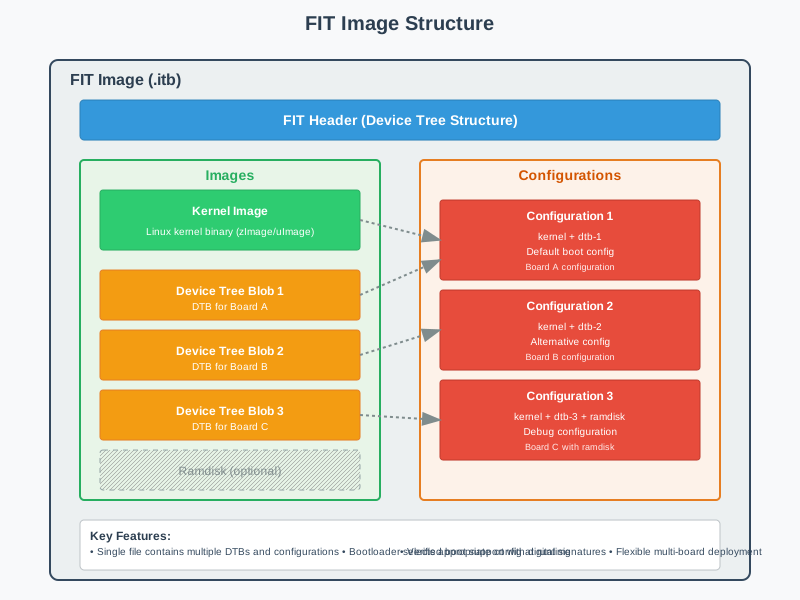
The kernel itself can be presented to U-Boot in several formats. Historically, a custom uImage format was used, which wrapped a compressed kernel with a U-Boot-specific header. While still supported, modern systems have largely migrated to a more powerful and flexible format called the Flattened Image Tree (FIT) Image. A FIT image is a single file that can bundle multiple components together, such as the kernel image, one or more device tree blobs for different hardware revisions, and an initial RAM disk (initramfs). Each component is described within the FIT image’s own internal device tree structure, and it can be protected with checksums or even cryptographic signatures for secure boot implementations. This “all-in-one” packaging simplifies deployment and enhances system integrity. For our purposes, we will start with a raw kernel binary, often named Image, to clearly understand the distinct loading steps, but knowledge of the FIT image is crucial for professional work.
Practical Examples
This section provides a hands-on walkthrough of compiling, deploying, and configuring U-Boot on a Raspberry Pi 5. You will need a host machine running a Linux distribution, a Raspberry Pi 5 with a power supply, a microSD card (16GB or larger), and a USB-to-TTL serial adapter.
Warning: The Raspberry Pi’s GPIO pins operate at 3.3V. Using a 5V serial adapter can permanently damage your device. Ensure your adapter is set to or is exclusively a 3.3V model.
Hardware Setup: The Serial Console
The serial console is your window into the boot process. It provides direct access to U-Boot and allows you to view kernel messages before the display drivers are initialized. You need to connect the serial adapter to the Raspberry Pi 5’s UART pins on the 40-pin GPIO header.
- Connect the GND pin of the adapter to a Ground pin on the Raspberry Pi (e.g., pin 6).
- Connect the RXD pin of the adapter to the Raspberry Pi’s TXD pin (GPIO14, pin 8).
- Connect the TXD pin of the adapter to the Raspberry Pi’s RXD pin (GPIO15, pin 10).
Note the crossover connection: RX goes to TX and TX goes to RX. Plug the USB end into your host machine.
Build and Configuration Steps
First, we must obtain and build the U-Boot source code. We will use a cross-compiler to build the ARM64 binary on our x86 host machine.
1. Install a Cross-Compiler:If you do not have an AArch64 cross-compiler, install one. On Debian/Ubuntu-based systems:
sudo apt update
sudo apt install gcc-aarch64-linux-gnu
2. Clone the U-Boot Source Code:
git clone [https://source.denx.de/u-boot/u-boot.git](https://source.denx.de/u-boot/u-boot.git)
cd u-boot
# Check out a recent, stable version
git checkout v2024.04 -b rpi5-chapter
3. Configure and Build U-Boot:The U-Boot source tree contains default configurations (defconfig) for hundreds of boards. We will use the one for the Raspberry Pi 5.
# Set the ARCH and CROSS_COMPILE environment variables for the build system
export ARCH=arm64
export CROSS_COMPILE=aarch64-linux-gnu-

# Use the default configuration for the RPi 5
make rpi_5_defconfig

# Build U-Boot
makeu-boot.bin in the source directory.
Preparing the Boot Medium (microSD Card)
The Raspberry Pi boot process requires a specific file structure on a FAT32-formatted partition.
1. Partition the SD Card: Use a tool like gparted or fdisk on your host machine. Create a Master Boot Record (MBR) partition table. Create two partitions:
- Partition 1: ~256MB, formatted as FAT32. This will be our boot partition.
- Partition 2: The remaining space, formatted as ext4. This will serve as our root filesystem later.
2. Copy Boot Files:You will need a pre-existing Linux kernel image (Image) and the corresponding device tree blob (bcm2712-rpi-5-b.dtb). You also need the Raspberry Pi-specific firmware files. These can be obtained from the official Raspberry Pi firmware repository on GitHub or from a working Raspberry Pi OS image.Mount the FAT32 boot partition and create the following file structure:
/mnt/boot/
├── Image                # Your AArch64 Linux kernel image
├── bcm2712-rpi-5-b.dtb  # The DTB for the Raspberry Pi 5
├── u-boot.bin           # The U-Boot binary we just compiled
├── start5.elf           # RPi5 firmware
├── fixup5.dat           # RPi5 firmware
└── config.txt           # RPi configuration file
3. Create config.txt:This file instructs the Pi’s internal bootloader what to do. Create a new text file named config.txt on the boot partition with the following content:
# Enable 64-bit ARM mode
arm_64bit=1

# Tell the RPi firmware to load u-boot.bin as the "kernel"
kernel=u-boot.binu-boot.bin instead of a Linux kernel directly.
First Boot and U-Boot Console Interaction
With the SD card prepared, safely unmount it from your host, insert it into the Raspberry Pi 5, and connect your serial console software.
On your host machine, use a terminal program like minicom or screen to connect to the serial port (e.g., /dev/ttyUSB0) with a baud rate of 115200.
sudo minicom -b 115200 -o -D /dev/ttyUSB0
Power on the Raspberry Pi. You should see output from the Pi’s firmware, followed by the U-Boot banner:
U-Boot 2024.04 (Apr 15 2024 - 14:20:00 -0500)

DRAM:  8 GiB
Core:  74 devices, 23 uclasses, devicetree: separate
MMC:   mmc@10000: 0, mmc@20000: 1
Loading Environment from MMC... OK
In:    serial
Out:   serial
Err:   serial
Net:   eth0: ethernet@1f800000
Hit any key to stop autoboot:  3
Press any key within the countdown to interrupt the automatic boot process and drop to the U-Boot command prompt: =>.
Loading and Booting the Linux Kernel
From the U-Boot prompt, we will now manually perform the steps to load and boot our Linux kernel.
1. Verify Files: First, check that U-Boot can see the files on the SD card.
=> ls mmc 0:1
24855616  Image
 56984  bcm2712-rpi-5-b.dtb
1098240  u-boot.bin
  ...
2. Load Kernel into RAM: We use the fatload command to copy the kernel from the first partition (0:1) of the MMC device into a memory location designated by the variable ${kernel_addr_r}.
=> fatload mmc 0:1 ${kernel_addr_r} Image3. Load Device Tree into RAM: Similarly, we load the DTB into the location specified by ${fdt_addr_r}.
=> fatload mmc 0:1 ${fdt_addr_r} bcm2712-rpi-5-b.dtb4. Set Kernel Boot Arguments: We define the bootargs variable, telling the kernel to use the serial port as its console and where to find its root filesystem.
=> setenv bootargs 'console=ttyAMA0,115200 root=/dev/mmcblk0p2 rootwait'5. Boot the Kernel: Finally, we use the booti command, which is designed for booting AArch64 kernels that expect a device tree. We provide the memory addresses where we loaded the kernel and the DTB. The hyphen (-) is a placeholder for an initramfs, which we are not using.
=> booti ${kernel_addr_r} - ${fdt_addr_r}
## Booting kernel from Legacy Image at 02000000 ...
   Image Name:   Linux-6.6.20+
   Image Type:   AArch64 Linux Kernel Image (uncompressed)
   Data Size:    24855552 Bytes = 23.7 MiB
   Load Address: 00080000
   Entry Point:  00080000
   Verifying Checksum ... OK
## Loading Device Tree to 0000000078f8b000, end 0000000078f9cfff ... OK

Starting kernel ...
Automating the Boot Process
Manually typing these commands on every boot is tedious. We can automate this sequence by storing it in the bootcmd variable.
=> setenv bootcmd 'fatload mmc 0:1 ${kernel_addr_r} Image; fatload mmc 0:1 ${fdt_addr_r} bcm2712-rpi-5-b.dtb; setenv bootargs console=ttyAMA0,115200 root=/dev/mmcblk0p2 rootwait; booti ${kernel_addr_r} - ${fdt_addr_r}'
=> saveenv
Saving Environment to MMC... Writing to MMC(0)... OK
=> reset
The saveenv command writes the current environment (including our new bootcmd) to persistent storage. Now, when the Raspberry Pi reboots, U-Boot will automatically execute this command string and boot directly into Linux without any user intervention.
Common Mistakes & Troubleshooting
Even with a clear procedure, issues are common in embedded development. Here are some frequent pitfalls and how to resolve them.
Exercises
- Basic: Modify the Boot Delay and Prompt
- Objective: Customize the U-Boot environment to be more user-friendly during development.
- Guidance: Interrupt the boot process. Use the command
setenv bootdelay 8to change the autoboot countdown to 8 seconds. Usesetenv prompt "RPi5 U-Boot => "to change the command prompt. Runsaveenvandreset. - Verification: Upon reboot, confirm that the countdown now starts at 8 and the new prompt is displayed.
- Intermediate: Booting via TFTP
- Objective: Learn to load and boot a kernel over the network, which dramatically speeds up development by avoiding “SD card shuffling.”
- Guidance: Install and configure a TFTP server (e.g.,
tftpd-hpa) on your host machine. Place yourImageand.dtbfiles in the TFTP root directory. In U-Boot, connect an Ethernet cable and configure networking variables:setenv ipaddr <pi_ip>,setenv serverip <host_ip>. Modify yourbootcmdto replace thefatloadcommands withtftp ${kernel_addr_r} Imageandtftp ${fdt_addr_r} bcm2712-rpi-5-b.dtb. Save the environment and reboot. - Verification: The Raspberry Pi should boot successfully. The TFTP server logs on your host machine will show requests for the kernel and DTB files.
- Intermediate: Using a Boot Script
- Objective: Encapsulate complex boot logic into a script file for better maintainability.
- Guidance: On your host, create a text file named
boot.cmdcontaining the manual boot commands (one per line, without the=>prompt). Use themkimagetool (often provided in au-boot-toolspackage) to convert it into a U-Boot script image:mkimage -A arm64 -T script -C none -n "RPi5 Boot Script" -d boot.cmd boot.scr. Copy the resultingboot.scrfile to the FAT32 partition of your SD card. In U-Boot, change yourbootcmdto a simpler command:setenv bootcmd 'fatload mmc 0:1 ${loadaddr} boot.scr; source ${loadaddr}'. Save the environment and reboot. - Verification: The system should boot correctly by loading and executing the script from the SD card. This is a cleaner and more robust way to manage boot sequences.
Summary
This chapter covered the essential theory and practice of embedded Linux bootloaders, a foundational topic for any system developer.
- The bootloader is the critical software that initializes hardware and loads the Linux kernel into memory.
- The boot process is staged, typically starting with a small on-chip Boot ROM that loads a more capable second-stage bootloader like U-Boot.
- U-Boot’s primary responsibilities are completing hardware initialization, loading the kernel and Device Tree Blob (DTB), and passing essential boot arguments.
- The Device Tree Blob is a vital data structure that describes the underlying hardware to a generic kernel, enabling platform portability.
- The U-Boot command-line console and scriptable environment variables provide powerful tools for development, debugging, and automation.
- Practical skills in cross-compiling, deploying, and configuring U-Boot on a real target like the Raspberry Pi 5 are fundamental to building and customizing embedded Linux systems.
Having successfully launched a kernel, our next logical step is to understand what happens next. The following chapter, “Early Userspace and the Init Process,” will explore how the kernel mounts the root filesystem and hands control over to the first userspace program, bringing the system to a fully operational state.
Further Reading
- Das U-Boot Official Documentation: The definitive source for U-Boot commands, configuration, and architecture. Available at: https://u-boot.readthedocs.io/
- Device Tree for Dummies by Thomas Petazzoni: An excellent and accessible introduction to the Device Tree concept, syntax, and usage. Available at: https://elinux.org/Device_Tree_for_Dummies
- Raspberry Pi 5 Documentation: Official hardware and software documentation from the Raspberry Pi Foundation, including details on the boot sequence. Available at: https://www.raspberrypi.com/documentation/
- Mastering Embedded Linux Programming, Third Edition by Chris Simmonds: A comprehensive book covering many aspects of embedded Linux development, with excellent sections on bootloaders and system bring-up.
- The Linux Kernel Documentation – Booting: The kernel’s own documentation on its boot-time requirements and command-line parameters. Available at: https://www.kernel.org/doc/html/latest/admin-guide/kernel-parameters.html
- ARM Developer Center: For deep architectural details about the ARMv8-A architecture, including the exception model and boot process. Available at: https://developer.arm.com/